 Icon Mosaic
Rearrange your iPhone's Home Screen on your Mac.
Icon Mosaic shows every page of your iPhone's Home Screen side by side on your Mac. You can drag apps between pages with your mouse, sort them into a rainbow, and make folders just by describing what you want. When everything looks right, you send it back to your phone in one step.
Icon Mosaic is free to download and try. It runs on macOS 12 or later, on both Apple silicon and Intel Macs. It has been tested with iPhones running iOS 27, the current version of iOS.
This is a pretend Home Screen. Press a button to see what Icon Mosaic can do with it.
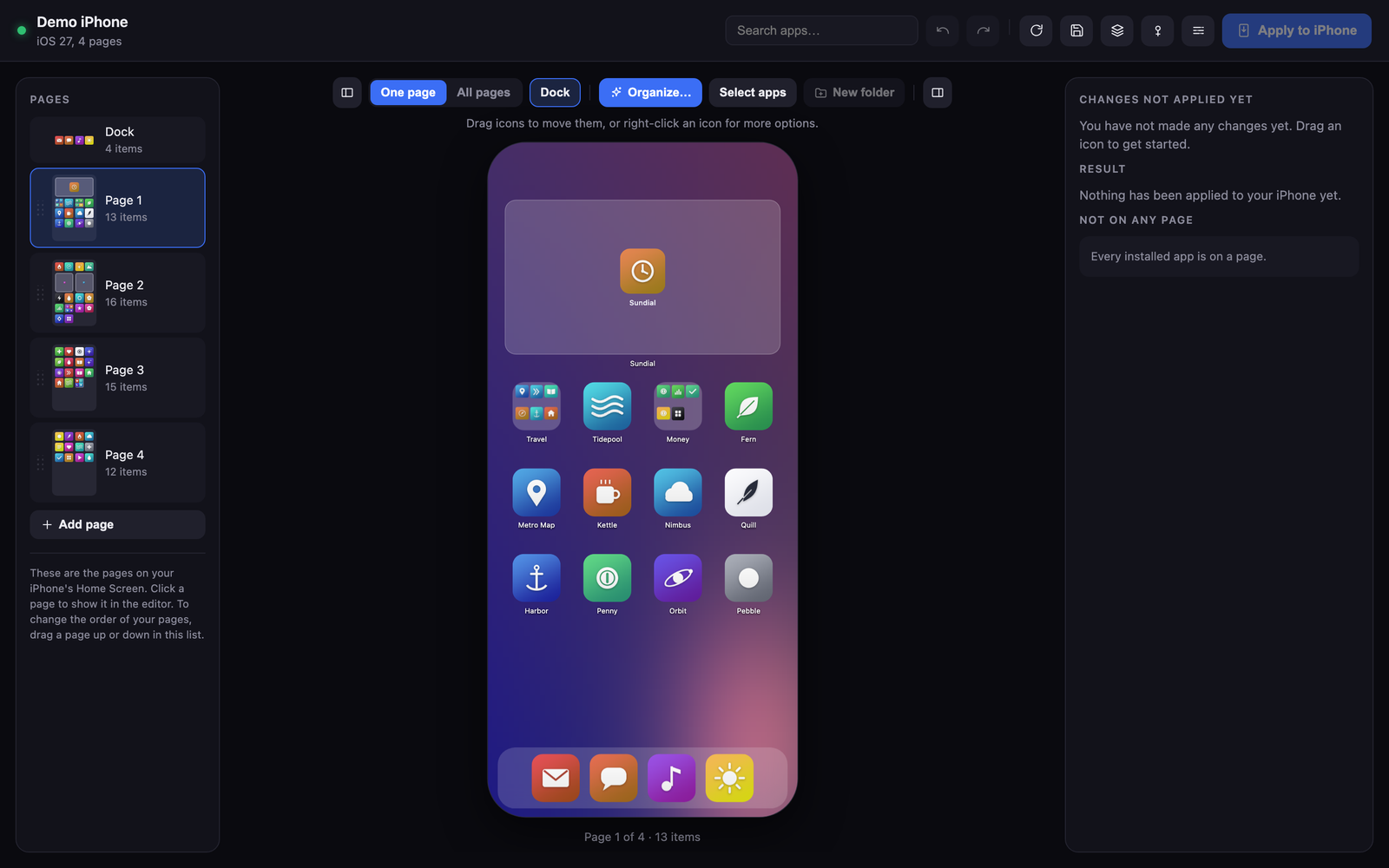
Here is what it looks like on your Mac.
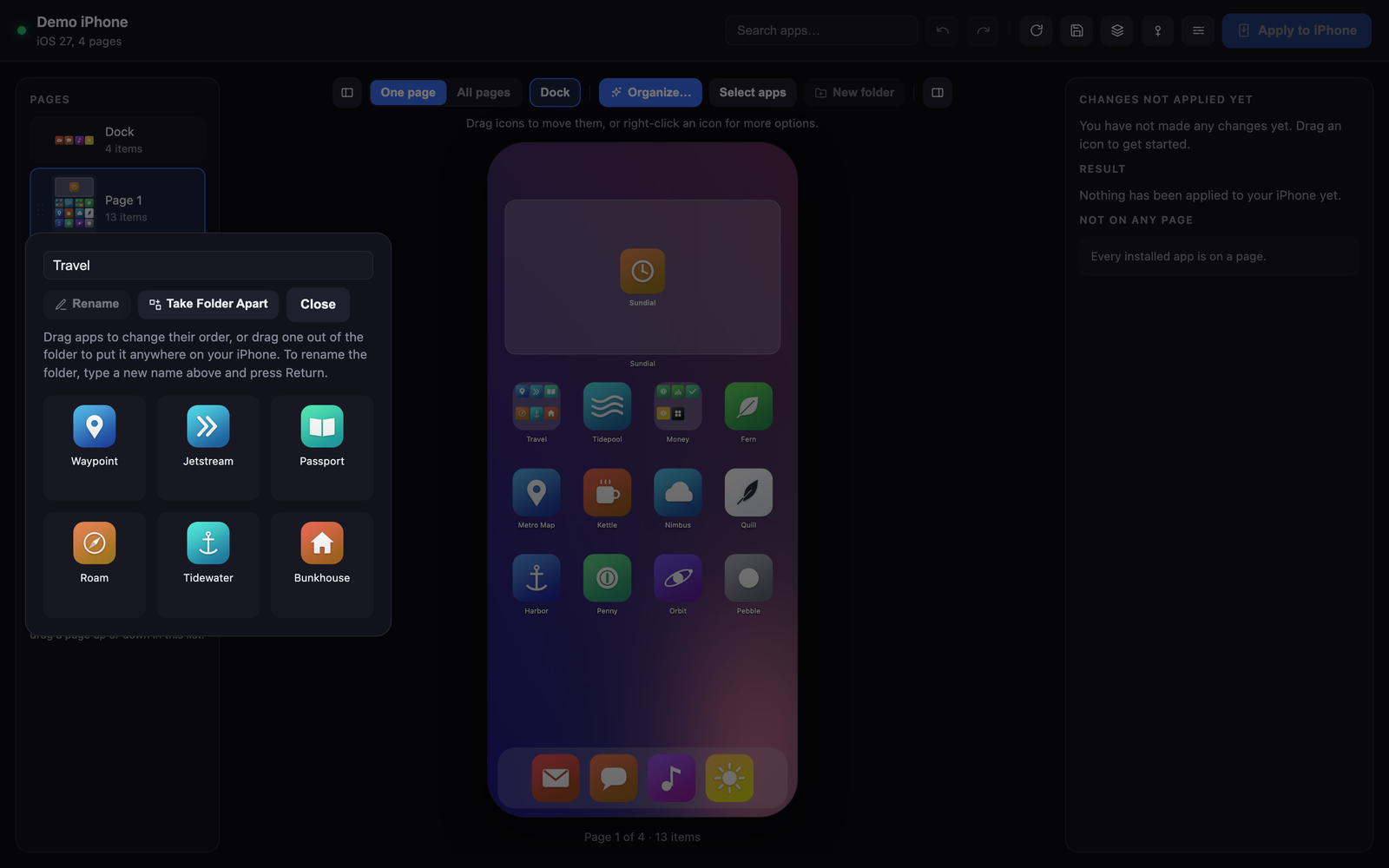
When you connect your iPhone, Icon Mosaic reads your real Home Screen, including your icons, folders, widgets and dock, and draws all of your pages at once. Everything you see here can be dragged around, and nothing changes on your phone until you say so.

Everything you would do with your thumb, only much easier.
Rearranging a Home Screen on the phone itself means holding an icon, waiting for everything to jiggle, and dragging it to the edge of the screen until the page finally turns. Icon Mosaic gives you a proper editor for the same job instead.
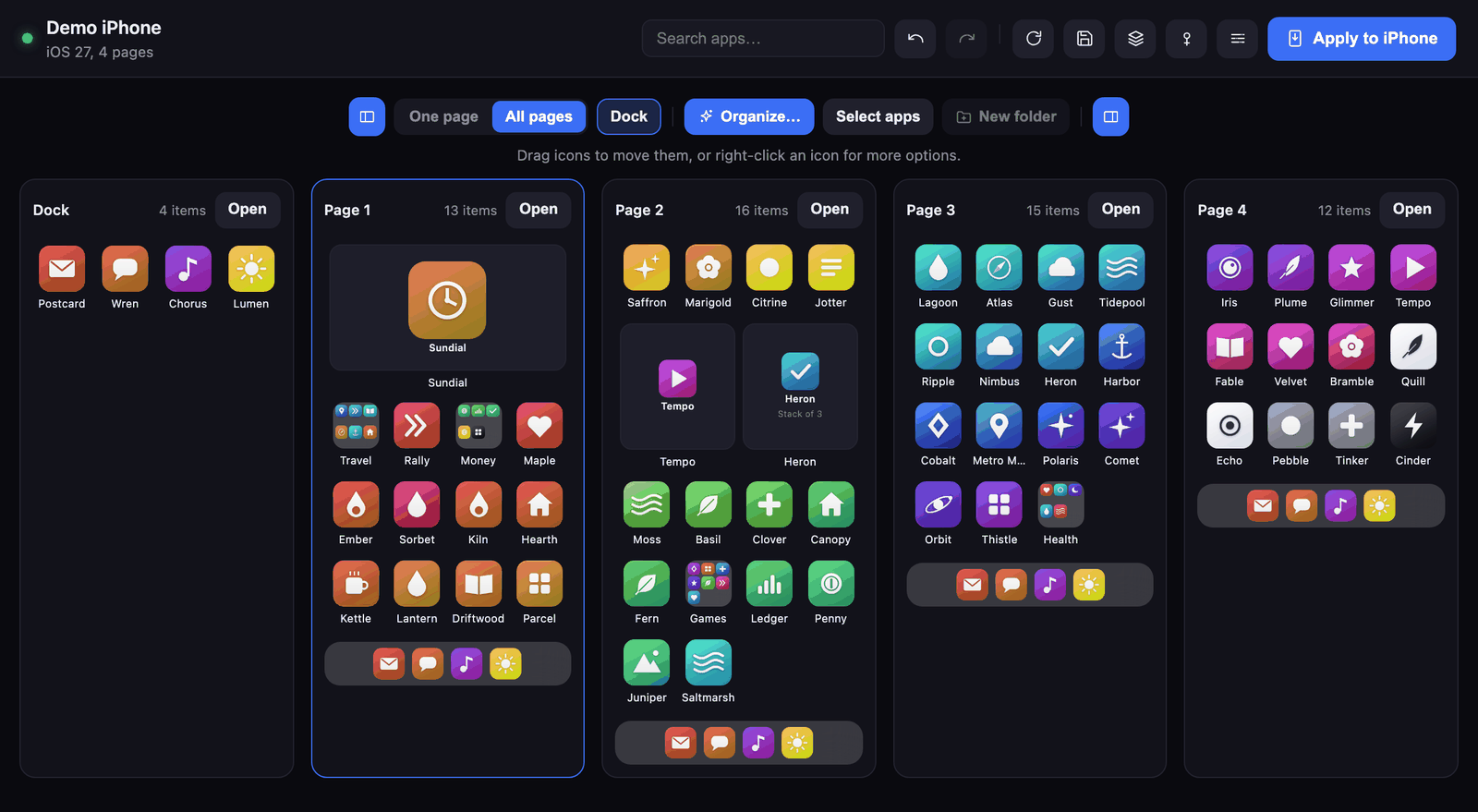
See every page at the same time.
All of your pages sit next to each other, so you can drag an app from your first page straight onto your fifth page in a single move. Folders open with a click, and you can drag apps in and out of them just like on your phone.
If you want to move a group of apps together, press Select apps, click the ones you want, and drag any of them. They can come from different pages. You can also search for any app by name, even one that is hidden inside a folder.
Sort everything into a rainbow, or from A to Z.
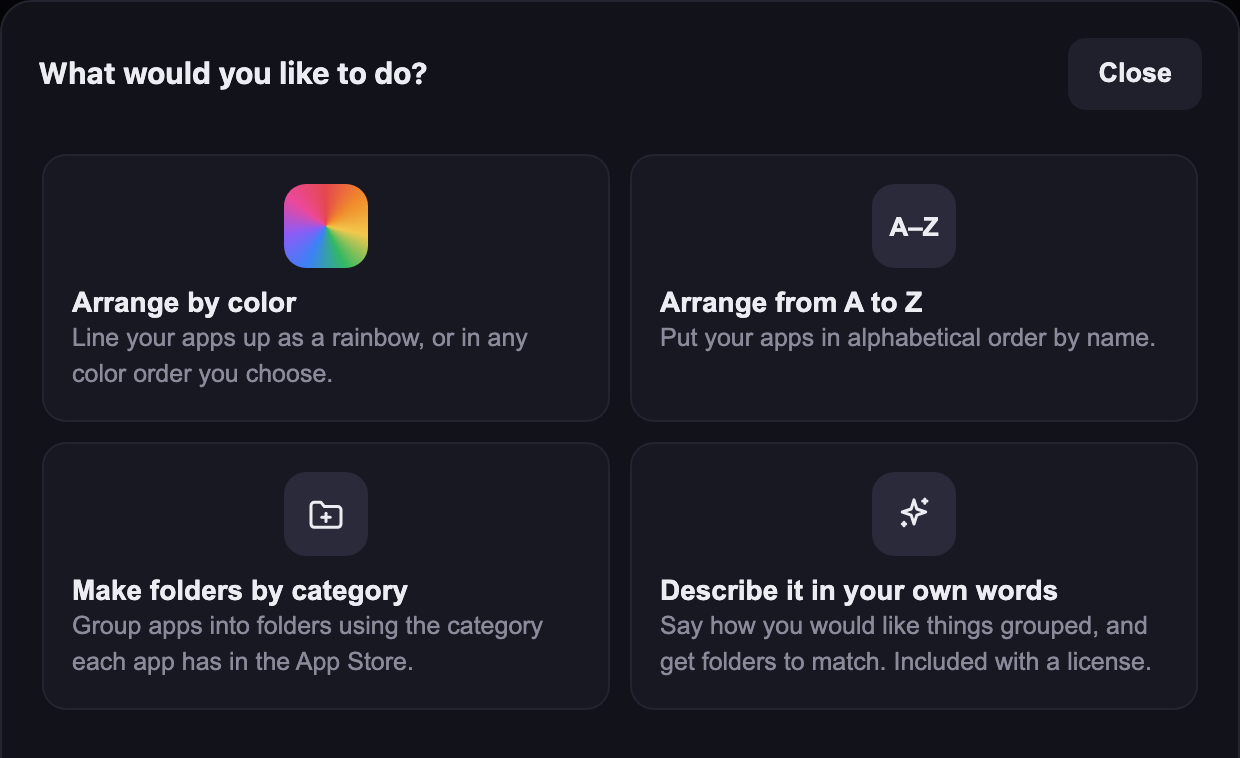
Icon Mosaic looks at the actual artwork of every icon and works out the color you would call it, so a red logo on a white background counts as red. It then lines your apps up as one rainbow that starts on your first page and continues across all of the others.
You choose the order of the colors yourself. You can start with red, put the black, gray and white icons first, or run the rainbow backwards. If you would like a true rainbow of every app, Icon Mosaic can take your apps out of their folders before it sorts them.
Make folders by describing what you want.
You can write something like “keep my folders, put any stray apps into them, and make new folders for the rest,” and Icon Mosaic will suggest folders to match. You see every suggested folder and every app in it before anything changes, and you can rename or skip any of them.
If you would rather not write anything, Icon Mosaic can also group your apps by the category each one has in the App Store, such as Games, Travel or Health.
Your favorite apps stay right where you can reach them.
Right-click an app like Phone, Messages or Calendar and choose Always keep out of folders. From then on, every automatic tidy-up leaves it alone, so the apps you use all day never end up tucked inside a folder.
Widgets and widget stacks are shown at their real size, and you can move, duplicate or remove them, or change which widget sits on top of a stack.
You see exactly what will change before it happens.
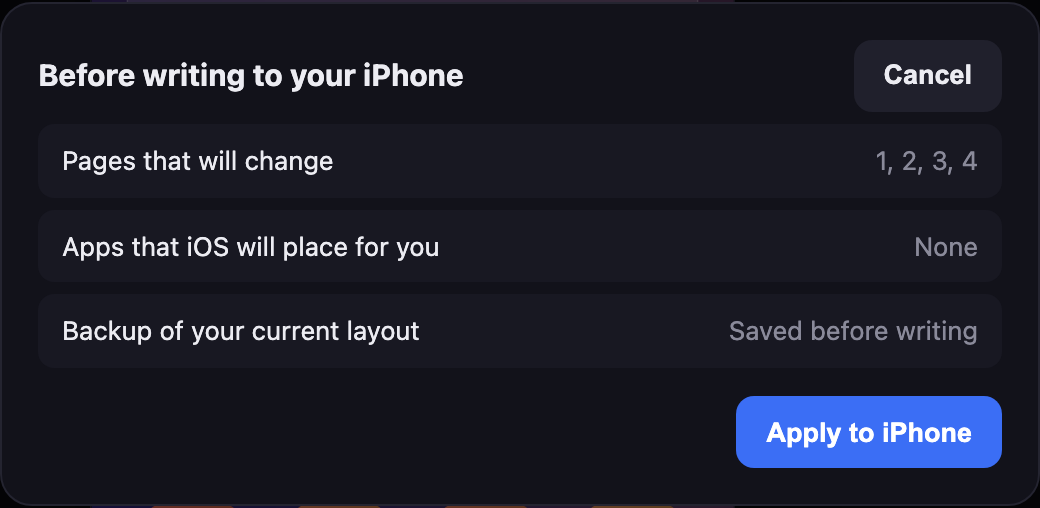
Every change you make stays on your Mac until you press Apply to iPhone. Before anything is sent, Icon Mosaic shows you which pages will change and saves a backup of the layout your phone has right now, so you can always go back to it.
Undo and Redo work for everything, all the way back to where you started. You can also save a layout you like and open it again later, which is handy if you keep a different setup for work and for vacations.
Connecting your iPhone takes about a minute.
You do not need to jailbreak your phone or install anything on it. Icon Mosaic talks to your iPhone the same way Finder does when it backs up your phone.
Plug in your iPhone.
Use the same cable you use to charge it. After the first time, you can also connect over Wi-Fi if you turn on “Show this iPhone when on Wi-Fi” in Finder.
Unlock your phone.
Your iPhone will not share its Home Screen with a computer while it is locked, so unlock it and keep it on the Home Screen for a moment.
Tap Trust.
If your phone asks whether to trust this computer, tap Trust and enter your passcode. Icon Mosaic then opens with your Home Screen ready to edit.
Try everything for free, and pay once if you want to keep it.
There is no subscription. The free version lets you do everything except send your new layout to your phone, so you can make sure Icon Mosaic works with your iPhone before you spend anything.
Free
Download Icon Mosaic, connect your iPhone, and rearrange your Home Screen as much as you like. You can sort by color or from A to Z, make folders by category, search, undo, and save layouts to come back to. You can also see exactly what would change on your phone.
Download for MacLicense
A license lets you apply your new layout to your iPhone, and it also unlocks making folders by describing what you want. One license works on up to three of your own Macs, and it includes every update to version 1.
Buy a licenseQuestions people ask
Could this break my iPhone?
Icon Mosaic only changes where your icons, folders and widgets sit on your Home Screen. It never installs, deletes or opens anything on your phone, and it does not touch your photos, messages or settings. Before every change it saves a backup of the layout you had, and you can put that backup back on your phone at any time from the Layouts window.
Can it hide apps so they only live in the App Library?
Not quite. When a layout is written to an iPhone, iOS makes sure every installed app has a place on a page, so an app you leave off will appear at the end of your last page. Icon Mosaic tells you about this before you apply. If you want an app only in your App Library, you can remove it from the Home Screen on your phone afterwards.
Why is it not on the App Store?
Apps from the Mac App Store are not allowed to talk to an iPhone over the cable in the way Icon Mosaic needs to. Icon Mosaic is signed and checked by Apple through its notarization service, so it opens like any other Mac app you download from the web.
What information leaves my Mac?
Your Home Screen layout stays on your Mac. To group apps by category, Icon Mosaic looks up app names in Apple's public App Store directory. If you use the feature where you describe the folders you want, the names and categories of the apps involved, and the names of your folders, are sent to our server to work out the suggestion, and they are not stored. You can read the details in our privacy policy.
Does it work over Wi-Fi?
Yes, once your Mac and iPhone are set up to sync over Wi-Fi in Finder. Plug your phone in once, select it in Finder, turn on “Show this iPhone when on Wi-Fi,” and after that it can connect without the cable while both are on the same network. Now and then macOS loses track of a phone on Wi-Fi; if that happens, unlocking the phone or plugging it in once usually brings it back.
How does the license work on more than one Mac?
One license can be active on up to three of your own Macs at the same time. If you replace a computer, you can release its seat from the License window in the app and use it on the new one straight away.
What happens if an iOS update stops it from working?
Icon Mosaic relies on a part of iOS that Apple does not document, so a future update could change how it behaves. We test new versions of iOS and release updates when they are needed, and the app tells you when a new version is ready. If it does not work for you within 30 days of buying, email us and we will refund you.
Is there a version for Windows or iPad?
Not yet. Icon Mosaic is available for the Mac, and it works with your iPhone. If you would like to hear when there is news, email us at hello@iconmosaicapp.com.